
Directory administration help
Directory administration is a web-based app used to manage UVic department directories. You can use it to update your department’s contact information. This includes a list of employees and points of contact—a new feature that lets you highlight service areas in your department.
Requirements: Directory administration should run in any modern web browser, but we focus testing on Chrome. If you’re having trouble in another browser, try using Chrome instead.
Quick start
If you’re creating a new directory for your department or migrating from the old UVic Directories app, you should know:
- Changes to directories aren’t fully saved until you publish them.
- Points of contact are a new feature that you can use to highlight front-line service providers like a customer service desk, undergrad and grad advisors, or a contact for general inquiries.
- Use your browser’s in-page search function (Ctrl + F in Windows, + F in Mac) to find specific people in a long list.
- New directories are pre-populated with data from Banner. Imported data may be stale, incomplete or incorrect.
- People are hidden by default. You’ll need to make them visible before non-admins can see them.
- Website URLs, phone numbers, and building names have to be formatted in particular ways for the links to work.
When you’re preparing a department directory for the first time:
- Assign at least 1 more directory admin for your department who can back you up. (Optional, but highly recommended.)
- Write a description for the department.
- Create 1 or more point of contact.
- Review the web address, courier address, and mailing address that were imported. Update them if necessary.
- Review the people that are in the list. Make sure the listed job titles (roles) and contact information is accurate. Make any needed corrections.
- Create groups and sub-groups for teams or functional units with your department. Give them helpful names and descriptions and move people into them. (Optional, but highly recommended for large departments.)
- Use the mass editing tools to make the people visible (excluding anyone you specifically want to hide).
- Preview and publish the new directory.
Administrators
The departments view shows a list of all the departments that you’re an administrator of. You can add and remove other admins for that department. To do this:
Select the Delete button next to the admin's name to remove them.
Select Add administrator to add a new admin.
Description
Your department’s description will be at the top of its directory page. If you haven’t added a description, there will be placeholder text.
A good description will help visitors know they’ve found the right department. If there are other departments with similar names, it can help distinguish between them. It can also include important search terms.
- Select the Edit button under the description to add or change it.
- Edit the description.
- Select the Update button when you’re done.
You can’t change your department name and code using Directory administration. If you need to change them, contact IT support for help.
Points of contact
A point of contact is a person, office or department that handles communication with customers, the UVic community, or the public. They have an important role in helping people who don’t know your department’s organizational structure well to find the people or office who can help them.
Many departments have multiple points of contact. For example, you might have one office that provides academic advising to students and another office that manages budgeting and administrative tasks. The description can help people find the best point of contact for specific questions or issues and provide useful info about how to access it.
Manage points of contact

- Select Move up or Move down to move a point of contact up or down in the list.
- Select the Edit button at the bottom of a point of contact block to edit (or hide, show, or delete) it.
- Select Add point of contact to add a new one.
Add or edit a point of contact
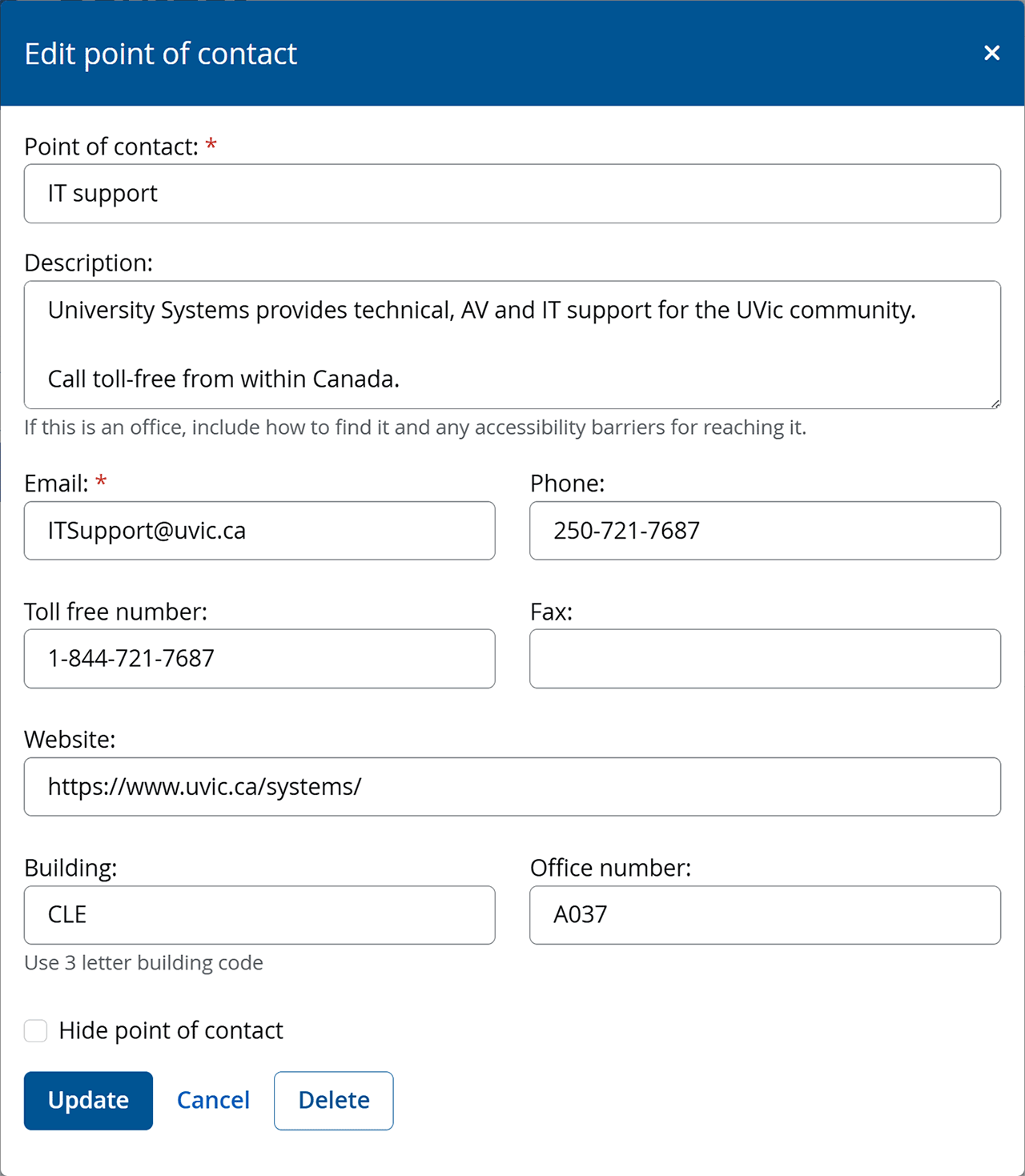
When you add or edit a point of contact, it’ll bring up the Edit point of contact form. Use this to:
- change the name, description, and contact information for this point of contact
- hide or reveal this point of contact
- delete this point of contact
Formatting contact information
Use the full URL of your website, including a “https://” at the beginning, for your department’s website. Incomplete URLs won’t link properly. For example:
- "https://www.uvic.ca/systems" will work
- "uvic.ca/systems/" won't
Make sure the phone number is formatted according to UVic’s style guidelines and that there’s no other text in the field. For example:
- "1-800-123-4567" will work
- "1-800-123-4567 (within North America)" won't
Any valid phone number (including domestic, 1-800, international, and SMS short codes) will work so long as it’s formatted correctly.
For buildings, use the building code. Most building codes are 3 letters—like CLE, JCC or RSC—but there are a few exceptions. All building codes are listed in the building directory.
Addresses
To edit your department’s website address, courier address or mailing address:
- Select the Edit button below address. This will open the Edit Contact information form.
- In the form, edit your department's website, courier address, and mailing address text fields.
- Select Update.
Formatting URLs
Use your website’s full URL, including a “https://” at the beginning, for your department’s website. Incomplete URLs won’t link properly. For example:
- https://www.uvic.ca/systems will work
- uvic.ca/systems/ won't
People
The People section of your department’s directory is a list of the individual people who work in your department. Most employees will be added to the list automatically along with their contact information. You can also add other UVic employees manually.
Manage the people list
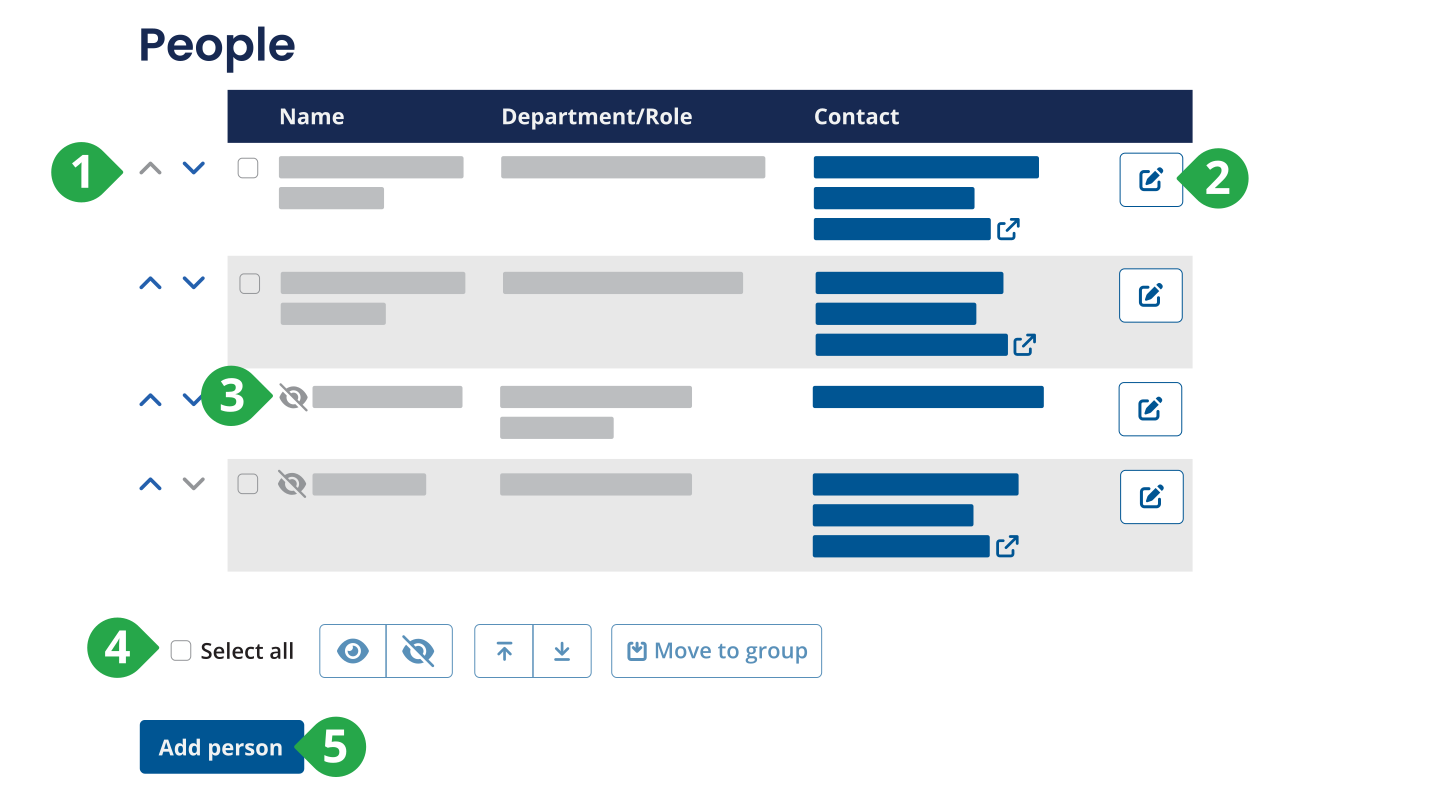
In the people list, you can:
- Select or to rearrange people in the list. (Use the bulk editing tools to move 1 or more people directly to the top or bottom of the list.
- Select Edit to open the editing view for someone, where you can change what’s displayed on your department directory:
- Change their role
- Change their email address, phone number and office location
- Hide or reveal them in the list
- Create a copy of their entry
- Delete their entry (only if you manually created it)
- Identify which employees have been hidden from the list (represented by the [eye] icon)
- Bulk selection and bulk editing actions
- Add someone to the list manually
If you’re using groups, each group has a separate list of people with its own bulk editing tools. However, you can’t manually add someone directly to a group.
Add people to the list
New employees are added automatically
Your directory will be populated with everyone who has a role as a full-time employee of your department. Default contact information for people will be added from UVic’s other online systems. Employees can continue to update their own directory information using in their UVic profile. Roles are added from the job records that Human Resources manages. This happens overnight.
When a new employee is added to your department list, they’ll be added to the end of the list and be hidden by default. Their email address, phone number, and office will be copied from their UVic profile. You can review these new additions and make changes before you make them visible.
Manually add other people
You may want to add other people to your department’s directory—people who aren’t specifically coded as department employees in Banner. You can add anyone who’s already listed in the UVic directory. Some employee groups (like casual and student employees) aren’t listed. To do this:
- Select the Add person button at the end of the People section.
- Find the person you want to add using the search box.
- Select the Add button next to them.
Change someone’s role and contact information
To edit a person’s entry, select the Edit button to the right of the row in the People table. You can:
- Change their role, email address, phone number, and office.
- Hide them or make them visible. Note that the value that’s displayed— Hidden or Visible—is the current value. Select the button to toggle it.
- Assign them to a group (if your department uses them.
You can’t change someone’s name (or preferred name) in your department directory. They can change their own preferred name in their UVic profile. If you only want to display their role without identifying them by name, consider using a point of contact instead.
You can only override the information listed in your department directory. The information from their personal UVic profile will still be listed in the person search.
Bulk editing
Use the checkboxes in the people list (or the “Select all” checkbox below) to select multiple people. You can use bulk editing tools to:
- Show them
- Hide them
- Move them to the top or bottom of the list
- Move them to a group
Bulk editing: visibility
If you’re building your department directory for the first time, you can use this feature to quickly make all (or most) employees visible.
Groups
Create groups to organize department staff into teams, groups or functional roles. Groups often reflect the internal organization of a department. You can create sub-groups inside groups to show more complex hierarchies.
Each group has its own title (or name), description, and people. In the admin view, there are separate bulk editing controls for each group. You can move employees from groups back to the main list (which is always called “people”) or to other groups.
Once you’ve created a group, select the Edit button to rename it, edit the description, hide or show it, or delete it.
Departments
Departments will list the other departments that report to yours.
You can:
- Select Move up or Move down to move a department up or down in the list.
- Select to show a department that's hidden.
- Select to hide a department.
You can’t change the hierarchy of departments in the Directories tool. If the structure of the departments is incorrect, contact IT support for help.
Troubleshooting
Error while publishing
A typical error message is “Department did not publish successfully. Please try again or contact an admin.”
This usually happens when several people publish at the same time. Wait at least 5 seconds and then try again.
Someone isn't showing up in People search
- The employee is on leave and therefore not active according to Banner
- The employee is a casual, hourly, contractor or student employee
- The developers are working to expand the types of employees the directory can include
- When ever possible, search for people by NetLink ID V number. First name or Last name may find them, but full name searches are currently broken.
There is a small number of people who are missing from directories due to other issues. If your missing employee doesn't fit any of the above scenarios, please contact IT support.
Get help now
If you need help using or accessing Directory administration, contact IT support.