
Ticketing system
The Financial Services teams have been working to implement a ticketing system to help us better support you. A ticketing system provides many benefits including:
- better triaging of requests (getting your request to the correct team faster)
- providing a single location to capture all historical communication relating to a request that can be viewed by other team members within financial services as needed
- ability to track the status of your requests
Ready to submit a form or ask a question?
| Accounts Payable/Research Accounting submission page | |
How does the ticketing system work?
How to submit a ticket
- Ask questions using a general enquiry form:
- Submit forms
- Submit invoices using the invoice submission form
- After submitting your question or documents via any of the paths above, you will receive a ticket creation notification email with a unique ticket number & instructions on how to interact with the request; if you reply to this notification email with additional comments or attachments they will get added to the ticket and the team member managing your request will be notified
*Online forms are the preferred method for submitting your requests as they capture more information to help our teams better triage requests and capture necessary information
How to add additional information to a ticket
- To provide additional information or documents to your ticket, you can simply click ‘reply’ in your email application and respond to the ticket creation notification email that you received. Any attachments or comments you provide in your email response will be appended to the details of your ticket request.
- Alternatively, you can view your ticket in the ticketing portal and add comments or attachments
How to view all of your submitted tickets
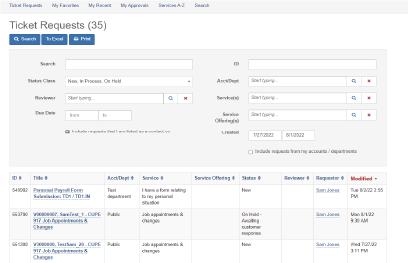
- To check the status of one of your submitted tickets, go to the ticketing portal and view the list of your submitted tickets or search for a specific ticket using the number or a keyword.
- Click on the title for any of the tickets in the list and you will be able to see any comments on the ticket and add additional comments or attachments if necessary.
- The default display for your ticket requests is to show 'New', 'In Process', or 'On Hold' tickets. To view tickets that have already been completed or cancelled, select the 'Status Class' drop down list and select the status of ticket that you would like to view.
Submitting documents requiring approval
- Complete the fields in the appropriate online form.
- At the approvals section of the form, select the relevant approval option:
- I am the FAST account holder/delegate and have approval authority for the amount indicated
- I am NOT the FAST account holder/delegate and will choose approvers below
- Enter the names of the FAST account holder/delegate and your one over one/supervisor in the appropriate fields
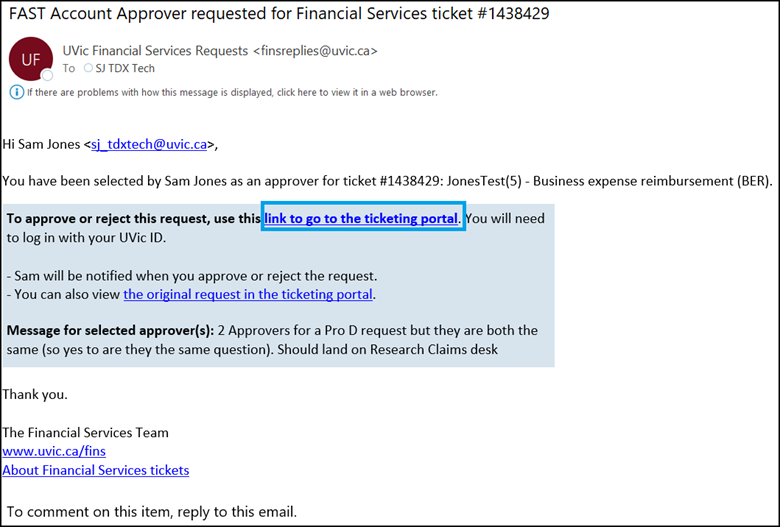
- Approvers selected will receive an approval request email with instructions on how to approve the request
- **Only one FAST account holder/delegate approver can be selected in this online approval process. If multiple approvers are required for your request, select the options for attaching approvals to your request (below)
- I have attached my approvals
- Attach an email or other document indicating the approval by the FAST account holder/delegate and/or your one over one/super
- Attach an email or other document indicating the approval by the FAST account holder/delegate and/or your one over one/super
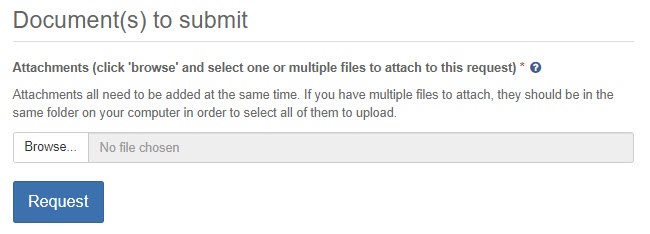
- Upload the document(s) and click 'Submit'.
- If you selected 'find approval authority for this request', your ticket status will change to 'awaiting approval' in your list of ticket requests in the ticketing portal.

- You will receive an email notification when your request has been approved or rejected by your selected approver(s).
Approving a ticket request
For Payments & Banking or Research Accounting requests
For Payroll related requests:
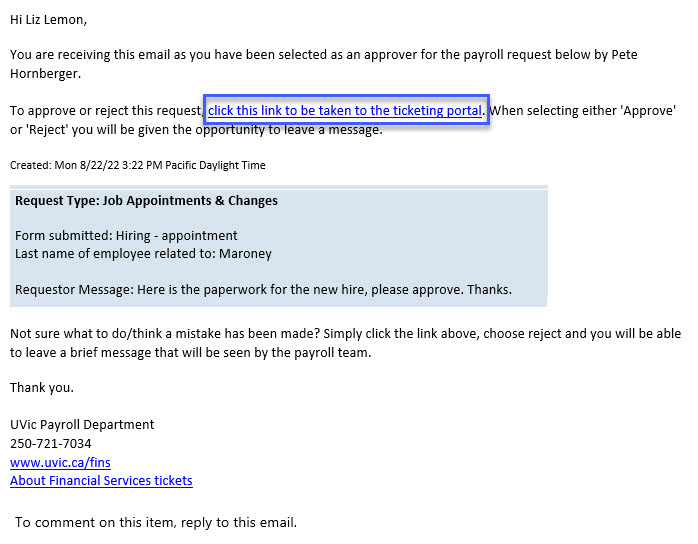
- To view this request, click on the link in the body of the email to be taken to the approvals screen in the ticketing portal.
- Click on the link in the 'Service Request Details' section to review the full details of the request, including attachments.
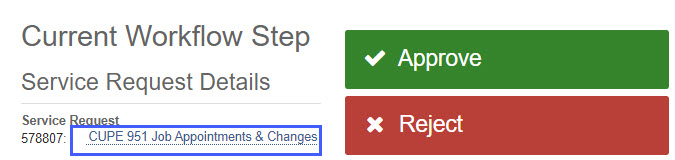
- Once you are satisfied with the details of the request, click the 'back' button on your browser and click the 'Approve' or 'Reject' button.
- You can choose to provide comments on your approval (these comments will only be visible to the Financial Services team that is working on the ticket), click 'Save'.
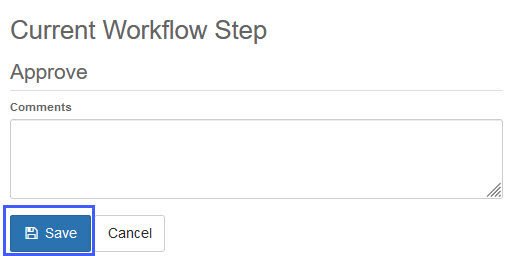
- If you choose to reject the request for approval, the ticket will be cancelled and the requestor will be notified to create an submit a new ticket request and select an appropriate approver.
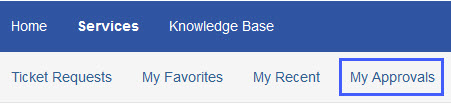
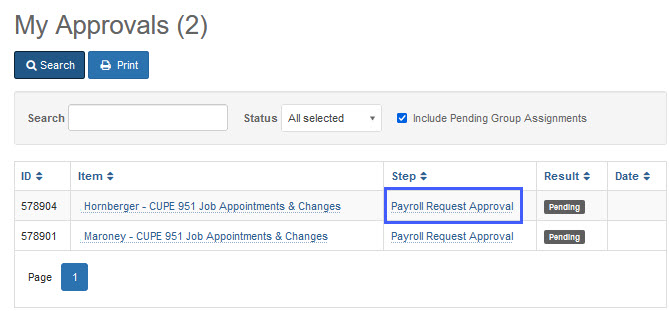
- If you have several tickets awaiting your approval, you can view them all in the ticketing portal by selecting the 'My Approvals' tab at the top of your screen in the ticketing portal.
- Click on the link in the 'Step' column to view the request.
- Review the request and select approve or reject as above.
How to add a contact to a ticket
If you are completing and submitting form online, you can choose to add up to two additional contacts to your ticket. The people added as contacts in the 'Add additional contacts' fields on any of the online forms will receive a ticket creating notification email and will be able to view the ticket when they log in to their ticketing portal.

Additional contacts are restricted to UVic employees and the notification email will be sent to the preferred email address that person has set up in UVic online tools.
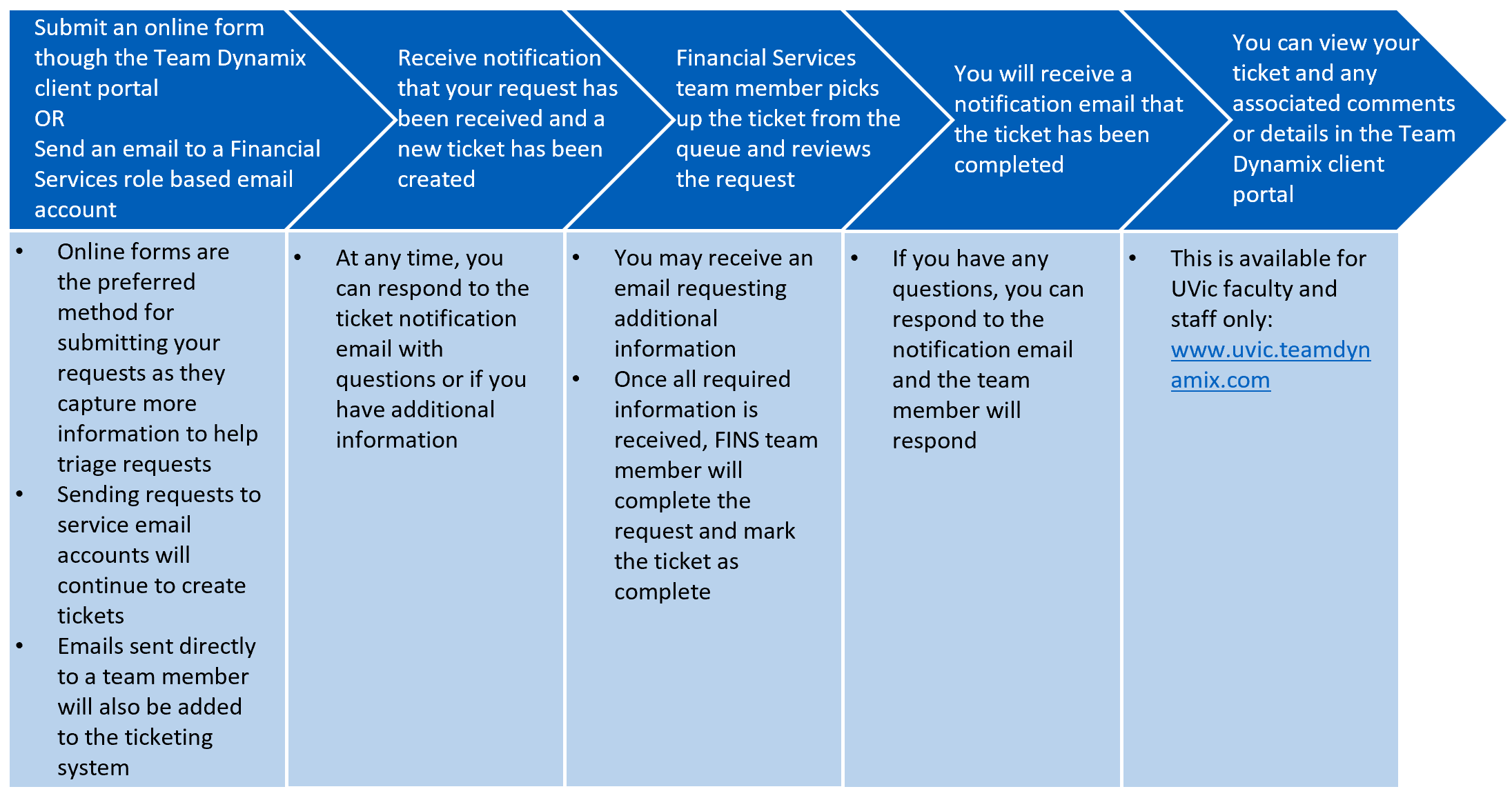
Ticketing system walkthrough
Access the ticketing system client portal
You can access the client portal to view previously submitted requests (accessible to UVic employees only): https://uvic.teamdynamix.com/
Questions
I received a ticket created email, and I am an employee, but the link to the ticket does not work.
The ticketing system matches ticket requests to a faculty or staff member based on their preferred email account within UVic online tools. If you submitted a request from an email address that is not your preferred email address, the ticket will not be connected to your user profile in the ticketing system. The ticket notification emails and replies to those notification emails still work; however, the link to the ticket in the notification email will return an error as that ticket is not connected to your preferred email account.
This scenario is not uncommon, especially for people using role base email accounts. If you want to ensure that you have access to view your ticket history via the link in the notification emails, we recommend using online forms/submission portals when possible. Alternatively, submit requests from your preferred email account, or CC your preferred email address on requests.
What about phone calls or front counter interactions?
Why is Financial Services making this change?
How is Financial Services making sure my personal information is safe and secure?
I submitted a request and but forgot to add an attachment or wanted to provide more information – what should I do?
If you are an employee of the university, you can either:
- reply to the 'ticket created' notification email and attach any relevant documents or add further comments to the body of the email and click send; or
- you can access the ticketing system client portal (there will be a URL in the notification email) where you can see all of your previous tickets, add attachments to a ticket or comments to the comment feed at the bottom of a ticket.
If you are not an employee of university, you can reply to the 'ticket created' notification email with additional comments & attachments and click send.
How will I know if my request is in progress or complete?
The team member assigned to the ticket request will notify you if further information is required or if the request is complete; this notification will be delivered as an email to your inbox and will have a similar format to the 'ticket created' email.
If I reply to a status update or comment added notification what happens?
Who can see the requests I submit?
I received a notification saying that my request is closed but it appears the request is just being sent to another department – what is happening?
Some requests received by the Financial Services team require work to be completed by a different department prior to being able to proceed. If you receive this status update notification email, it is because your request has been referred to another department to complete some tasks prior to Financial Services being able to proceed with their part of the request.
I received a notification saying that my request is “Awaiting Work/Information from Non-FINS Department – what is happening?
I received a notification that my ticket is complete but I am not satisfied that it has been. What should I do?
Can I add another person to view the ticket I submitted?
If you are completing and submitting a form online, you can choose to add up to two additional contacts to your ticket. The people added as contacts in the 'Add additional contacts' fields on the online forms will receive a ticket creation notification email and will be able to view the ticket when they log in to their ticketing portal.
Additional contacts are restricted to UVic employees and the notification email will be sent to the preferred email address that person has set up in UVic online tools.
Question not answered above? Contact us!
Project team:
- Anisa Montgomery (anisa@uvic.ca)