
Soft commitments
Soft commitments is a forecasting feature within FAST Finance that enables users to record projected future funding and anticipated expenses for a specific FAST account. This tool allows the users to better plan and visualize upcoming financial obligations by creating forward-looking entries directly in FAST using a table.
Soft commitments can be viewed only by running the designated soft commitments report in FAST. These entries do not appear on the standard operating statement. Users will only be able to see soft commitments after generating the specific report.
Authorized department users are responsible for entering and maintaining their Soft Commitment data to ensure the accuracy and reliability of the related reports. Research Accounting is responsible for setting up access and can provide guidance on entering Soft Commitments and running the reports. However, Research Accounting is not responsible for the soft commitments entries themselves.
Access soft commitments in FAST
Enter soft commitments
- Log in to FAST and navigate to the Finance Reporting module from the left navigation bar.
- Click on the 'Soft Commitments' tab in the Finance Reporting module in FAST and select 'Soft commitments' from the dropdown menu. This will take you to the 'Soft commitment data entry page'

- On the soft commitment data entry page 'Filter Options' screen, enter the 'Fund' where you would like to enter the commitment and click 'execute report' in the right side of the screen.

- Click the green '+ New' button in the top left corner of the screen. This will add a new line to the data entry page. All required fields will be highlighted pink.

- Enter the required information in the new line for soft commitment. Click the blue 'floppy disk' icon in the top left of the screen to save the entry.

- Required fields: Fund, Orgn, Acct, Amount, Fiscal year, Description
- Optional fields: Actv, Locn, Payee/Vendor, Reference
View soft commitments on an operating statement
You can view the soft commitments that you have entered on an operating statement report in FAST Finance Reporting in one of two ways:
- Via a link on the soft commitment data entry page.
- Access the soft commitment data entry page from the 'Soft Commitments' tab as indicated in the section above.
- In the 'Filter Options' screen, you will see 'Page Notes' in the bottom half of the screen. There are links to operating statement report views that will show the soft commitments that have been added.
*Note: PTD represents 'Project to date'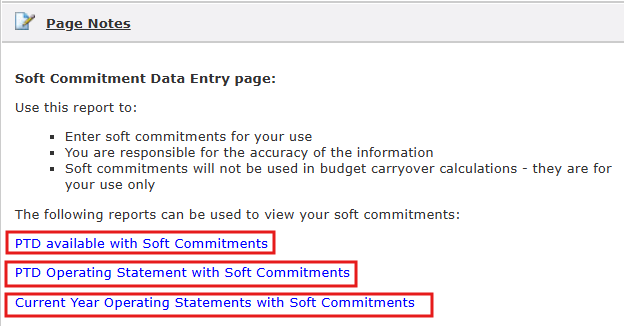
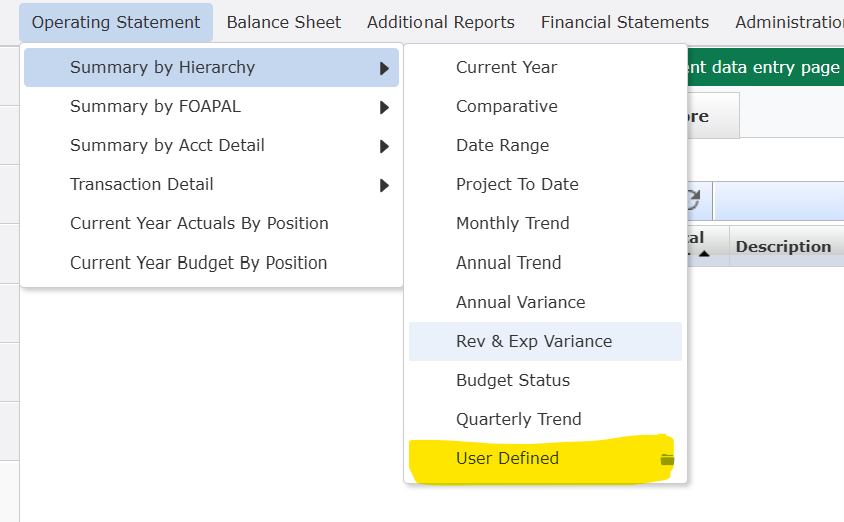
- Via the operating statement tab at the top of the FAST Finance Reporting screen. Go to Operating Statement-->Summary by Hierarchy-->User Defined
- In the 'User Defined' folder, there are two reports to choose from:
- PTD Available with Soft Commitments
- PTD Operating Statement with Soft Commitments
- Current Year Operating Statements with Soft Commitments
- In the 'User Defined' folder, there are two reports to choose from:
Operating statement reports
There are two operating statement reports available for viewing soft commitments.
- Project to date / PTD Available with Soft Commitments
- This report includes the project to date budget available PLUS commitments. Displayed by each fiscal year.

- This report includes the project to date budget available PLUS commitments. Displayed by each fiscal year.
- Project to date / PTD Operating Statement with Soft Commitments
- This report is designed to show how much budget/expenses/commitments have been posted so that you do not duplicate an entry as a new commitment.
- This report includes:
- project to date (PTD) budget balance
- year to date (YTD) actual expenses
- project to date expenses
- commitments - these are future expenses that have already been posted to FAST (e.g. salary, C Card, purchase orders, scholarships)
- project to date (PTD) budget available
- soft commitments (SC) by year - these are future expenses entered by the users in this data table for future years
- PTD budget available less soft commitments. This last column represents the amount available for spending after factoring in revenues and expenses that have been entered as soft commitments by users.

- Current Year Operating Statement with Soft Commitments
- This report includes:
- Annual budget for the current year
- Year to date (YTD) actual expenses
- Commitments - these are future expense that have already been posed to FAST (e.g. salary, C Card, purchase orders, scholarships)
- Budget available - this column represents the amount available before soft commitment entries by users
- Soft commitments (SC) for current year - these are future expenses entered by users in the soft commitments data entry page for the current year. These have not been posted to FAST.
- Annual budget less soft commitments - this last column represents the amount available for spending after factoring in revenues and expenses that have been entered as soft commitments by users.
- This report includes:
